Tyler Tries Building a Chrome Extension
There is nothing more embarrassing sharing a link with someone with a bunch of utm query parameters https://www.tylerhillery.com/?utm_source=share&utm_content=share_button. Which is why I built URL Clipr, a chrome extension that removes unwanted query parameters.
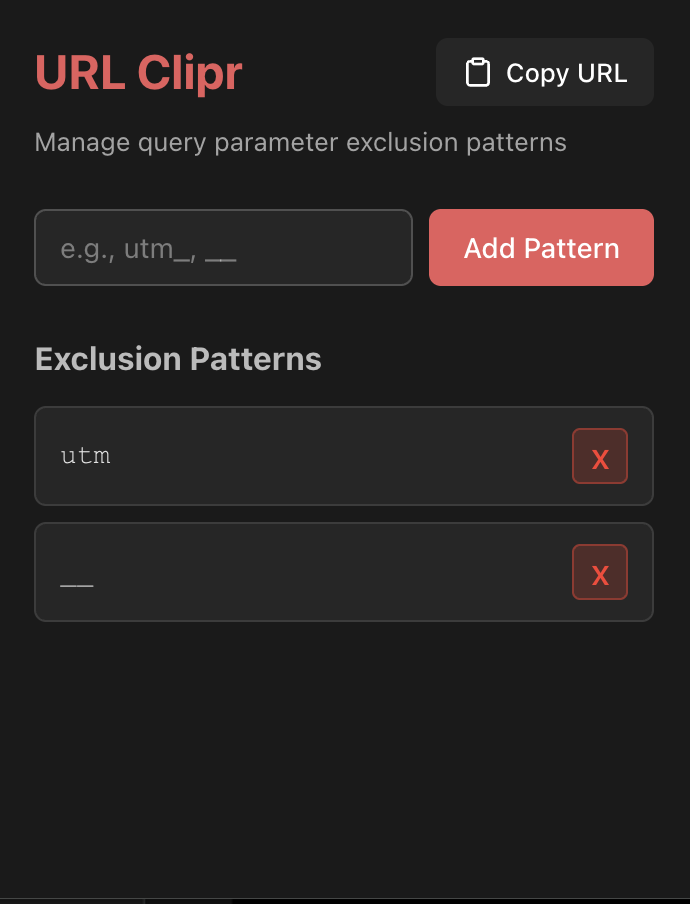
Users can define a list of patterns (currently limited to “starts with” patterns) that will be excluded when copying the URL. There are three ways to copy the URL:
- Shortcut CTRL+Shift+U / Command+Shift+U which can be modified at chrome://extensions/shortcuts
- Copy Button in the top right corner of the popup
- Context Menu when right clicking a link on a web page.
I could add a pattern such as utm and when I copy the URL it would go from https://www.tylerhillery.com/?utm_source=share&utm_content=share_button to https://www.tylerhillery.com
I never built a chrome extension before so the first thing I did was created a playground repo to see how chrome extensions work. Starting a playground repo is one of the first things I do when learning anything new. It provides a no stress way to experiment. I can often get caught up in the ancillary tasks of a project like CI/CD, code formatting, repo structure, testing etc. Playgrounds allow me to ignore all of that and focus solely on the thing I am learning.
The get started docs for chrome extension development is where I began. Once I finished this guide I started some searching to see if anyone had a preexisting template I could use with built in CI/CD to help with publishing the extension. Eventually I came across this framework called WXT which has the tagline:
an open source tool that makes web extension development faster than ever before.
At first it seemed a little overkill for the extension I was trying to build but I liked the idea that I could eventually publish this extension to multiple browsers. WXT does allow a pretty bare bones setup so you can ignore using a frontend framework like React, Vue, Svelte. I was actually surprised to learn that chrome extension popups are just plain HTML/CSS/JS. Not sure why I was expecting anything different.
WXT has a good guide, and my biggest takeaway was learning how a Chrome extension can have multiple entry points. These entry points define how the extension starts and where its functionality lives. For URL Clipr, the two I needed were the background and popup entry points.
The background entrypoint is responsible for adding the copy button in the context menu on right clicks. This is done by using browser.contextMenus.create. Then you can add an onClicked listener to apply the cleaning logic and add to clipboard. The other listener the background entrypoint sets up is for the copy-url event which is created as a shortcut in the wxt.config.ts file:
export default defineConfig({
  srcDir: "src",
  imports: false,
  manifest: {
    name: "URL Clipr",
    permissions: ["storage", "activeTab", "contextMenus", "scripting"],
    commands: {
      "copy-url": {
        suggested_key: {
          default: "Ctrl+Shift+U",
          mac: "Command+Shift+U",
        },
        description: "Copy URLs without unwanted query params",
      },
    },
  },
});
The only difference from the context menu on click event is the copy-url event has to use browser.tabs.query to get the active URL.
The popup entry point shows the UI when you click on the extension. It’s where the user can specify the list of patterns to exclude. In full transparency the main UI code for the popup was AI generated. I wouldn’t say “vide coded” as I did thoroughly review the code, even though HTML/CSS is not my strong suite.
The patterns are stored in local storage and retrieved whenever a URL needs to be cleaned. What surprised me was how much trickier the cleaning logic turned out to be than I expected. I initially planned to use a flexible regex-based approach that could handle cases like “starts with” “ends with,” “contains,” and “equals.” My idea was to build something like [?&])(?:${sources.join('|')})=[^&]*(?=&|$), where sources would come from the saved patterns, along with a dropdown that lets the user specify the pattern type. That way, the patterns could be stored like this:
I have a confession to make though, I don’t understand regex that well and every time I use it I have to use regexr.com or https://regex101.com/ to breakdown the pattern for me. The pattern I came up with felt overly complex so I kept it simple for the first version and only allowed “starts with” patterns which allows me to use very basic JS string methods
Another aspect that wasn’t as straight forward as I anticipated was decoding and encoding URLs. The core function that cleans the URL takes in a string version of the URL with the list of patterns to filter out.
I convert the urlStr to a URL object. My original plan was to use the URLSearchParams object but I want to see if you can notice something in the below example:
Did you spot it? The encoding is different for searchParams, you get hello+world vs hello%20world. This is actually mentioned in the docs:
However, URL.search encodes a subset of characters that URLSearchParams does, and encodes spaces as %20 instead of +. This may cause some surprising interactions—if you update searchParams, even with the same values, the URL may be serialized differently.
This made it tricky to use any built in objects so instead I operated on the raw string itself to “keep it simple stupid”.
export function urlClipr(urlStr: string, patterns: string[]): string {
  const url = new URL(urlStr);

  const raw = url.search.slice(1);

  const params = raw
    .split("&")
    .filter((param) => param !== "")
    .filter((param) => !patterns.some((pattern) => param.startsWith(pattern)));

  return `${url.origin}${url.pathname}${
    params.length ? "?" + params.join("&") : ""
  }${url.hash}`;
}It’s funny how this is the core logic for the entire extension. Everything else is mainly setting up listeners, dealing with storage, UI code etc.
If it wasn’t for setting up a comprehensive test suite I wouldn’t have caught this subtle difference! Speaking of testing, WXT has great built in tools for testing. WXT spins up a browser with the extension preinstalled in dev mode. I was very impressed by WXT as you can tell the creators thought deeply about entire DX from development to publishing.
The toughest part for me was figuring out how to publish the extension to the chrome web store. WXT makes this easy and has a guide on how to do so with GitHub Actions but the part I got tripped up on was where to get the following environment variables:
- name: Submit to stores
        run: |
          pnpm wxt submit \
            --chrome-zip .output/*-chrome.zip \
        env:
          CHROME_EXTENSION_ID: ${{ secrets.CHROME_EXTENSION_ID }}
          CHROME_CLIENT_ID: ${{ secrets.CHROME_CLIENT_ID }}
          CHROME_CLIENT_SECRET: ${{ secrets.CHROME_CLIENT_SECRET }}
          CHROME_REFRESH_TOKEN: ${{ secrets.CHROME_REFRESH_TOKEN }}
To get the extension ID I had to upload the extension manually for the first time. The CLIENT_ID, CLIENT_SECRET and REFRESH_TOKEN were the tougher parts. That was until I found this guide on publishing chrome extensions programmatically using the Chrome Web Store API. It walks you through everything step by step.
URL Clipr is live now, so give it try. Right now it only supports “starts with” patterns which honestly covers everything for me (mainly utm and __) but if there is enough demand for other patterns I will look into adding them.
Now feel free to save and share those URLs without those unwanted query parameters!